AIUnlimited
๐ŸŒณ

AI Foundations

๐ŸŒฑ
AI Seeds

Start from zero

๐ŸŒฟ
AI Sprouts

Build foundations

๐ŸŒณ
AI Branches

Apply in practice

๐Ÿ•๏ธ
AI Canopy

Go deep

๐ŸŒฒ
AI Forest

Master AI

๐Ÿ”จ

AI Mastery

โœ๏ธ
AI Sketch

Start from zero

๐Ÿชจ
AI Chisel

Build foundations

โš’๏ธ
AI Craft

Apply in practice

๐Ÿ’Ž
AI Polish

Go deep

๐Ÿ†
AI Masterpiece

Master AI

๐Ÿ“˜

AI Practice

๐Ÿ“–
Understanding Open-Source Models

Fundamentals and resources for open-source models

๐ŸŽฏ
From Problem to Model Task

Converting business problems to model tasks

โšก
Running Your First Model

See your first results in 30 minutes

๐Ÿ”ง
Fine-Tuning and Evaluation

Fine-tune models and evaluate performance

๐Ÿš€
Application Systems

Build real-world AI applications

๐ŸŽจ
Generative AI

Explore open-source AIGC models

๐Ÿค–
Agents

Learn Agent frameworks and MCP tools

๐Ÿ“
Supplementary Fundamentals

LLM basics and evaluation

๐ŸŽ“

Claude Academy

๐Ÿค–
Claude 101

Learn AI basics with Claude

๐Ÿ’ป
Claude Code 101

Code with Claude as your pair programmer

๐Ÿค
Introduction to Claude Cowork

Collaborate with Claude on complex projects

โš™๏ธ
Claude Platform 101

Build apps with the Claude API

Lab

7 experiments loaded
๐ŸงฌNeural Network Sandbox๐Ÿค–AI or Human?๐Ÿฅ‹Prompt Engineering Dojo๐ŸAlgorithm Race๐Ÿง AI Trivia Challenge๐Ÿ—๏ธSystem Design Canvas
๐ŸŽฏMock InterviewEnter the Labโ†’
๐Ÿš€

Career Development

๐Ÿš€
Interview Launchpad

Start your journey

๐ŸŒŸ
Behavioral Mastery

Master soft skills

๐Ÿ’ป
Technical Interviews

Ace the coding round

๐Ÿค–
AI & ML Interviews

ML interview mastery

๐Ÿ†
Offer & Beyond

Land the best offer

Get Started
AIUnlimited

MIT Licence.

ๆฒชICPๅค‡18025655ๅท-11

Learn

  • AI Basics
  • AI Practice
  • Claude Academy
  • Lab
  • Career Development

Community

  • About
  • FAQ

Support

  • Terms of Service
  • Privacy Policy
  • Contact
AI & Engineering Academicsโ€บ๐Ÿ“– Understanding Open-Source Modelsโ€บLessonsโ€บFree Resources for Open-Source Models
๐Ÿ†“
Understanding Open-Source Models โ€ข Beginnerโฑ๏ธ 10 min read

Free Resources for Open-Source Models

No Resources? You Can Still Play with Open Source Models - Free Resources Here

The model is found, the data is ready, but you're stuck on the last problem โ€” no resources to run it,

Your own computer has no GPU, or not enough VRAM, or even not enough RAM โ€” this is heartbreaking~

No worries, you can use the free resources provided by ModelScope first,

ModelScope Notebook puts the development environment in the cloud. Open a browser and you can write code, process data, and try model inference and small-scale fine-tuning within free GPU quotas.

When starting to learn about open-source models, you don't need to buy a new computer first. Run a small experiment to see how many resources you actually need.

How Many Free Resources Are Available? Check Before Using

ModelScope provides free CPU environments and GPU environments with time limits. Free resources include the following,

Resource

Configuration and Quota

What You Can Use It For First

CPU Environment

8-core CPU, 32GB RAM, unlimited free usage time

Downloading files, processing data, debugging code

GPU Environment

NVIDIA A10, 24GB VRAM, 36 hours free

Model inference and small-scale fine-tuning suited to this VRAM size

Storage

100GB persistent storage

Storing code, models, data, and experiment results

Open a Browser and Start the Notebook First

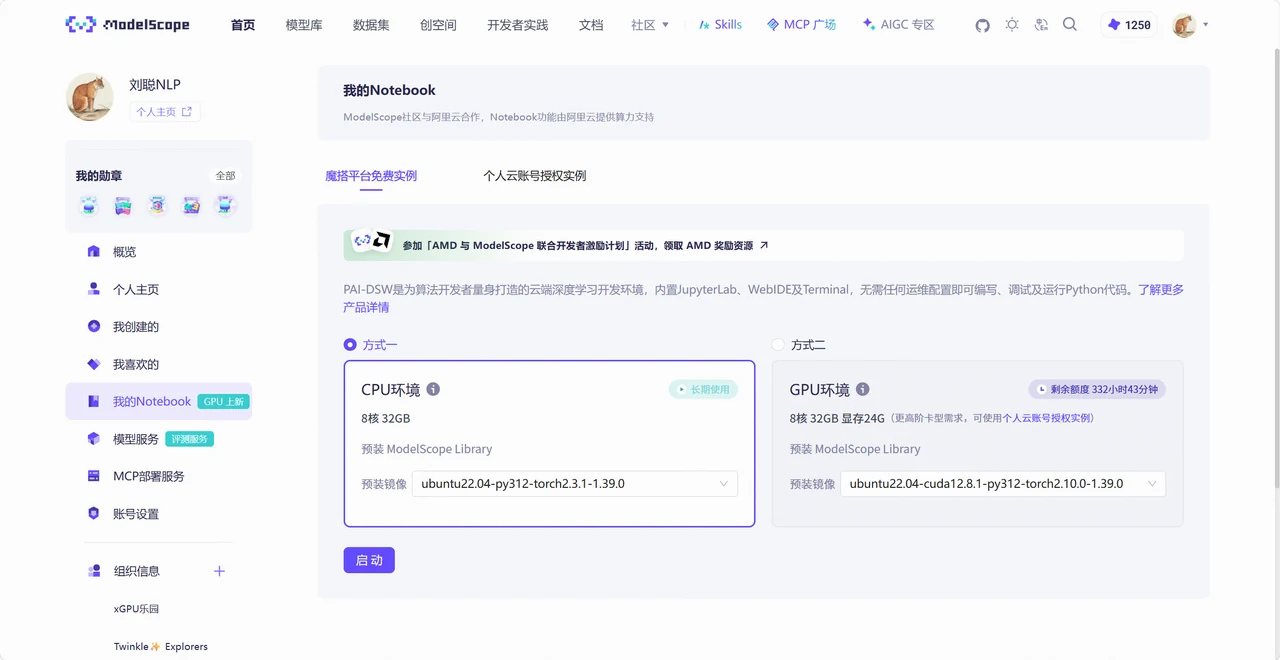
Log in to ModelScope, go to My Notebook. If the page prompts you to complete account binding or authentication, follow the instructions, then select CPU or GPU environment. After selecting, click 'Start' and wait for the instance to be created.
illustration

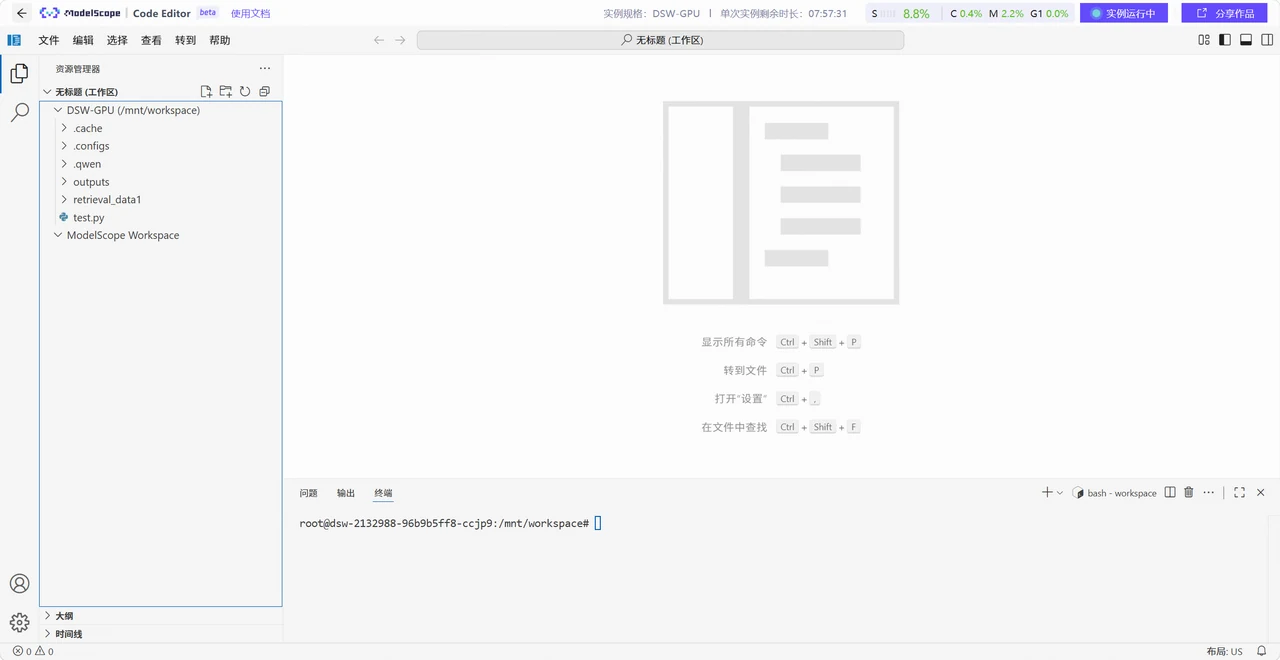
After the instance is ready, click to view the Notebook and enter the development page. A prompt to experience the new version will appear; follow the instructions to enter.
illustration

Where Files Are Stored โ€” Remember This

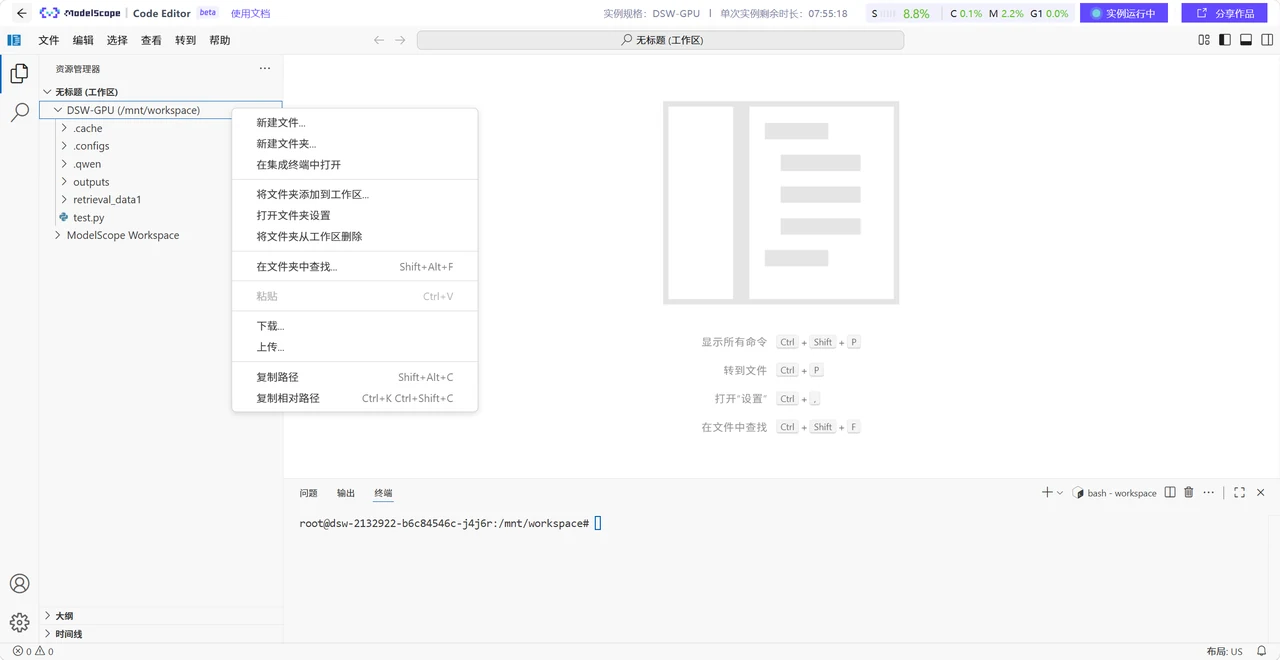
After entering the environment, you can upload your code and data in the left file area, and download results back to your local machine.
illustration

Files that need to be kept should be placed in the /mnt/workspace The 100GB persistent storage provided by ModelScope is mounted here. Files in other paths will not be retained after the instance is closed.

Lesson 4 of 40% complete
โ†Data: The Foundation of Fine-Tuning

Discussion

Sign in to join the discussion
directory.

You can create model, data, and output folders in this directory for easier access later. Run the following command in the terminal.

mkdir -p /mnt/workspace/models /mnt/workspace/data /mnt/workspace/outputs

When downloading models, you can also specify the save location directly.

from modelscope import snapshot_download

model_dir = snapshot_download(
    'Qwen/Qwen3-0.6B',
    local_dir='/mnt/workspace/models/Qwen3-0.6B',
)
print(model_dir)

If you want to see how much storage has been used, run the following command in the terminal.

du -sh /mnt/workspace

Model files can take up a lot of space. Versions no longer needed can be cleaned up promptly. Important code and experiment results can also be downloaded locally on a regular basis.

Run One Line of Code First, Then Things Get Easier

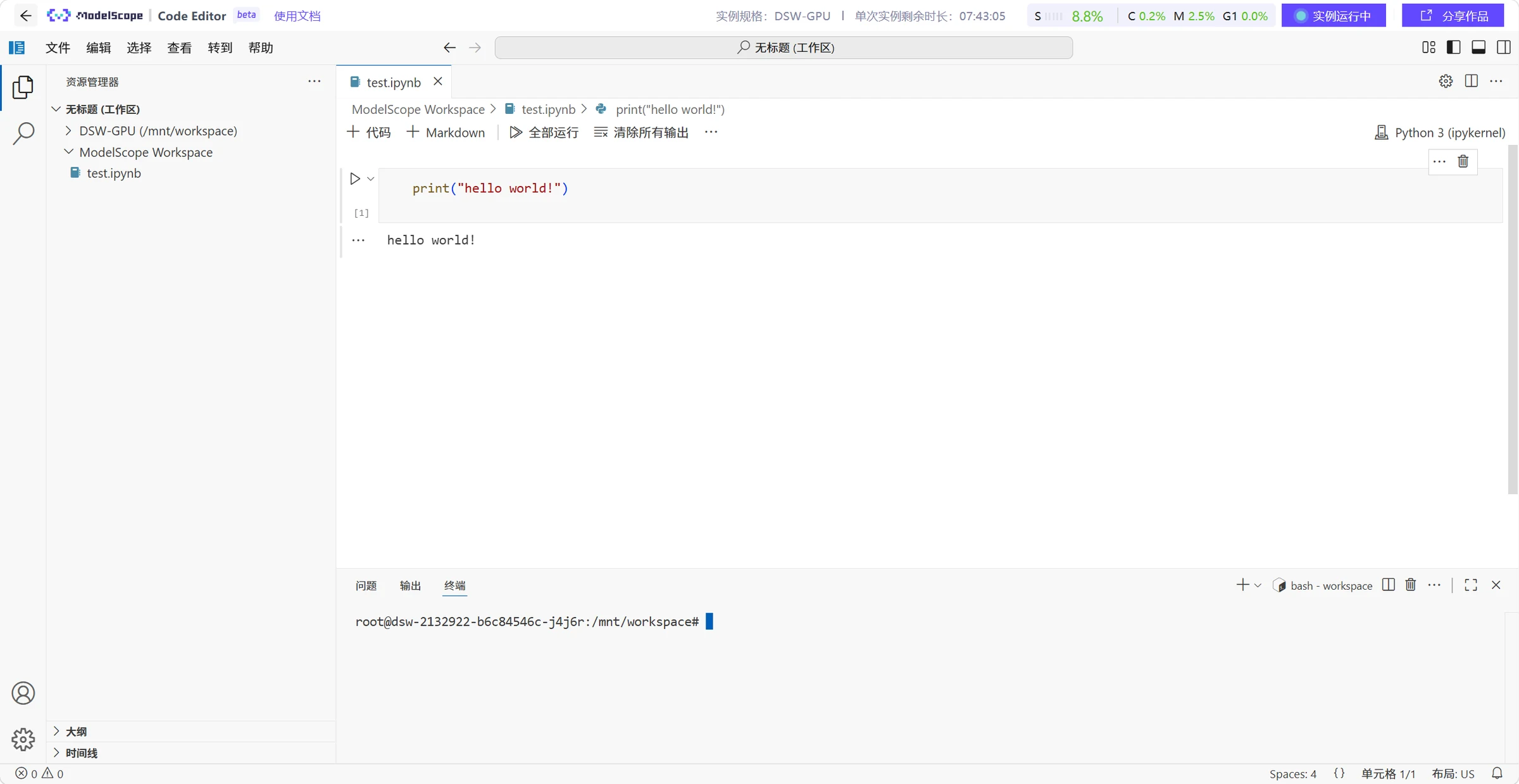
Create a new test.ipynb file in the file area, open it and add a code cell. For the first time, write a simple line of Python.

print('Hello, ModelScope Notebook!')

Click the run button on the left side of the code cell, and the output will be displayed below. Seeing this message means you have successfully executed code in the cloud.

illustration

When you need to install ModelScope, run the following command in a code cell.

%pip install -U modelscope

Then create a new cell and paste the model download code from earlier. When you need to read data, you can continue adding MsDataset.load examples.

The convenience of a Notebook is that code, explanations, and results can be in the same file โ€” edit a section, run it, and go back to where errors occur.

Experiment Over? Don't Leave the GPU Running

Free GPUs have time limits. Remember to stop the instance after your task is done. Just leaving the page or closing the browser does not stop the cloud machine. Return to the Notebook page to check remaining quota.

For long tasks, arrange to save progress in advance. Training files should be written to /mnt/workspace. After GPU quota is used up, you can continue using the free CPU environment for data processing and debugging; when you need more computing power, choose promotional resources or paid services as needed.

For the first time, don't over-schedule tasks. Open the environment, create a Notebook, download a small model, and run the examples,

You can refer to the 'See First Results in 30 Minutes' chapter.